The manual, chapter by chapter.
Everything Grow One does, in steps you can follow on your phone — and, under each one, the words that make your assistant do it for you. Read it before you buy, or keep it open while you set up.
Start here
Grow One is a chat. Almost everything in this manual can be done by typing or saying a sentence. The menus exist for the moments you would rather look than ask.
- Setup is a short conversation. On your first open the assistant asks who it is helping, what you do, how it should sound and which emails to show you. One question per screen; later, the instructions live under Settings→Your assistant (with a Redo setup button), and the email choices under Settings→Email→Email Preferences.
- Two menus. ☰ at the top-left is where you go: Chat, Needs you, Scheduled, Briefings, Planner, Inbox, your chat history, and, once set up, WhatsApp, Money, My apps and Website. ⋯ at the top-right is how the assistant is set up: Contacts, Guide and Settings.
- Type, dictate, or talk. The small mic next to the green button dictates into the text box. When the box is empty, the green button opens Voice mode: press and hold to speak, release to send, and it answers out loud.
- Add a photo to any question with the + at the bottom-left. A new conversation starts from the notepad icon next to ⋯; old ones live in ☰→Chat history.
- English or Spanish is one switch under Settings→Language & appearance, and every screen follows it.
Chat
Connect Gmail or Outlook once. Your assistant reads what arrives, keeps only the mail that needs you, writes the reply in your voice, and never sends anything without your tap.
- Connect. ⋯→Settings→Account connections→Connections→Gmail or Outlook→Connect. Gmail is one Google sign-in in the browser and Google Calendar comes with it; Outlook is one Microsoft sign-in (outlook.com, Hotmail or Microsoft 365), mail only for now. Either imports your last 7 days, then checks every 5 minutes. The first import takes 10–15 minutes and you get a notification when it is ready.
- More than one mailbox? Add another Gmail or Outlook from the same screen. The Creator plan allows up to 3 in total; new mail sends from your default account.
- Read. ☰→Inbox. Tabs: New, AI Drafts, Sent, Done. Chips such as Bills, Receipts and Travel narrow the list, and the ★ Newsletters section keeps your reading apart. An email is marked as needing a reply only when a real person is waiting: receipts, newsletters and "thanks!" are left out.
- Done means dealt with. Once you've read, answered or handled an email, tap the ✓. It moves to Done, so New gets to zero, and your briefing and reminders stop mentioning it. Nothing is deleted and your Gmail or Outlook doesn't change. The Done tab shows the last 7 days (Move to New brings one back); after that, just ask Grow One. It still remembers the email and can find it in your mailbox.
- Nothing is lost. "What comes in" shows everything that was screened out. Tap a sender there to bring them in for good. Filed wrong? Open the email, tap its category chip, choose "This is actually…". One tap fixes it and teaches the assistant.
- Reply. Open an email → Reply with AI → add a hint if you like (tone, an offer) → edit → Send. Under the draft, ✨ Polish with AI offers Shorter, Friendlier, More formal, or "Did I miss anything?".
- Let it draft ahead. Settings→Email→Email Preferences→AI Reply Mode→AI Auto-Draft writes replies before you open the inbox; they wait in the AI Drafts tab. The same screen holds your signature, "What should the Hub bring in?", what to watch for (bills, receipts, travel), your reading topics and the senders it has learned.
Needs a reply · 2
Sorted quietly · 14
Calendar and planner
Describe the event in plain words. A card shows what the assistant understood, and nothing lands on your calendar until you tap Add to Calendar.
- Schedule by saying it. "Dinner with Luca Friday at 7" in chat or voice. The card shows title, time, and any conflict with what is already there. Multi-day plans become an all-day span.
- Invite people. Mention their email in the request and Google sends the invitation when you confirm. Or open any event → People → type an email → Invite. Invitations you receive appear as a yellow banner at the top of the Planner: Accept, Maybe, or Decline.
- The Planner. ☰→Planner. Tabs: Today, Upcoming, Anytime, and Calendar (Day, 3-Day, Month). Type anything in the bar at the top; tasks save instantly, anything with a time becomes a card to confirm. Weeks run Monday to Sunday. Trip guides live under Upcoming → Your trips.
- Tasks. The green + creates one by hand. Tap a task's circle to complete it; Undo stays for 5 seconds.
- A schedule from a photo. Planner → the camera inside the add bar → photograph a flyer, a school calendar, a work rota. You get a checklist of the events it found; untick or edit any, then Add. Undo removes exactly what was added.
- Trips. When a flight or hotel confirmation lands in your mail, a trip pill appears in the app for the days you are away, with the day's items, reservations, where you are staying and the flight home. Your home base lives under Settings→Profile.
Calendar
Meetings
Record the meeting on your phone. A minute after you stop, you have a summary, who said what, the decisions, and the commitments turned into tasks.
- Record. Tap Meeting notes on the chat bar → New note → A recording → Start meeting. The first time, a short "Before you record" screen explains consent. Then say who is in the room: Just me starts at once; Me and other people asks "Does everyone know?" and can announce the recording out loud for you.
- Jot while it records. Your notes shape the summary. Tap Stop when the meeting ends. A recording can run up to 90 minutes, and recording is done in the iPhone or iPad app.
- The note saves itself 20–60 seconds later: summary, action items, decisions, the full transcript, and Suggested tasks. Tap + on a suggestion to make it a real task.
- Name the voices once. Open Manage, then the Speakers section: play each voice and name it ("It's me" for yours). Future meetings recognize everyone on their own.
- Already have a recording? Upload audio file transcribes a recording; Paste text takes a Zoom transcript or minutes.
- Ask your notes. The Topics tab groups sources (meeting notes, pasted text) into a topic. Chat with this topic answers only from those sources and cites which one. With Notion connected, Manage→Save to Notion sends a note to your workspace.
Meeting · Venue walkthrough
Contacts and people
Everyone you email, meet or write about ends up in one place. Before a call, ask for a brief on the person and walk in knowing where things stand.
- Open Contacts. ⋯→Contacts. Search by name, email or company. Add creates one by hand: name, email, company, phone, relationship, birthday, notes. Everything except the name is optional.
- Everything about them, in one place. Emails, meeting notes, tasks and saved thoughts that mention a person show up on their contact page, in tabs.
- Ask for a brief. "Catch me up on Dana" pulls her contact details, recent emails, meeting notes, open tasks, saved thoughts and anything scheduled with her into one answer. Works with a first name, a full name, or "Dana at Acme".
- Tap through. A contact's page has tabs for their Emails, Notes, Tasks, Meetings and Thoughts, and a Generate summary button that reads them all for you.
People
WebsiteEvery plan
Start from a template or tell it what the page is for. It writes the page in your brand voice, you publish it at pages.growone.io, and the form sends people straight into the app. It is not meant to replace a full website — but if you don't have one, it is a good way to get started, and with a home page plus a few linked pages it can be a basic website for most small businesses.
- Open it. ☰→Website. You land on the templates (on the iPhone, the Website home: your pages, Leads, About your business, Photo library, then the templates). Pick a template, or type below what the page is for ("a webinar page for Oct 30 with a sign-up form"). It may ask two or three questions first; answer, or tap "Skip and build". A build takes a moment and keeps going if you leave.
- Templates. Tabs group them by kind of business: Professional services, Portfolio, Real estate, Home services, Health & beauty, Food & shops, Events & classes, and Sign-ups & links. The tabs only help you browse: any template works for anything (a gym page fits a yoga studio, a consultant page fits a coach), and you can make your pages in any order. Tap one to see it full size; ‹ › shows the next one, and the color dots try other colors (for any other color, use it, then ask the chat). Tap Use this template, then Make it mine: it asks what the page is about (type it or tap Dictate; it's optional, and the more you share, the better), puts in your details and keeps the design. An event page stays an event page, with your business as the one hosting it.
- Portfolio. Personal sites that show a career as a path: Career story, Skill lines and Chapters, plus Modern Portfolio. On the first three, "Make it mine" asks for your résumé: "Add my résumé" (a résumé, or your LinkedIn profile saved as a PDF; on a computer: your profile → More → Save to PDF) or "Make it mine without it"; you can also type or dictate a few words about you. It uses your own name, fills in your jobs, years and work from the résumé, and leaves a blank for anything it doesn't say. Results in brackets, like [+38%], are blanks to fill in; Publish warns you if any are left.
- What goes on your pages. About your business (Website information on a personal account) shows what goes on your pages, and you can fix it there: business name, what you do, products or services, phone, website, logo, business type, brand colors and tone. A summary at the bottom says where each thing comes from (your profile, typed there, your Social agent, a matched site). Industry rules and fonts follow the type and colors. On a team, only the manager changes it. Match a website you already have copies the look of a site (up to 3 saved sites); a site that is a different business, a personal site or a school keeps its own name, details, logo and words, and pages built while it is picked use only those. A business account with no saved name is asked for it once (prefilled from your website), so pages never use your personal name. Already have a site? Grow One reads it once: its text, its logo and its real photos (stock photos are skipped). Every new page uses that logo (shown here, with "Not my logo" to remove it) and those photos where they fit. The first build asks whether the page should match its look or start fresh ("Match my site" / "Start fresh"); matching copies its colors, fonts and mood. If your site looks dated, Website offers once to "Draft it": a modern version of your homepage with your logo, text and prices (your current site stays as it is). Anytime, ask "make a new version of my website" or tap "Rebuild my site's page". Other people's sites are never copied.
- Photo library. Photo library (under About your business; on the iPhone, a row on the Website home) is one library for your pages and your Social agent. Photos you add there show up when a page asks for a photo (Library), and on Creator the Social agent can post them. It holds 100 photos, shrunk to web size when they upload. A photo the Social agent posted is removed 10 days later, unless one of your pages shows it.
- Pictures made for a spot. Tap an empty photo spot (or a photo) and choose ✨ Make one with AI: it starts from what the spot is for and makes a picture with no words in the right shape — a wide header, a section photo or a portrait. It uses 1 AI image and comes with Creator; it is also kept in Studio → My designs.
- Edit. On the iPhone, open a page and tap Edit: the page fills the screen. Tap any part and a card opens at the bottom (Style, Type, Duplicate, Add a section after it, Delete, or describe a change for just that part; Select more picks several); the floating bar on the page has Add, Theme and Quick edits; Undo, Redo and Done sit at the top. Outside Edit you see the page as a phone or, with Computer, as it looks on a computer. On an iPad or a computer the page sits next to the chat, with its motion paused so you can tap any part; Preview in the top bar shows it as visitors will, motion on (on a computer it opens in a new tab, at the width you picked: Computer, Tablet or Phone): Select any part (a heading, a photo, a button) to type over it, change its font, size and color at once, or describe a change for just that part (Attach adds a photo to put on the page, or to use as inspiration for its colors and mood); drag a Region box around several parts (Apple Pencil works too) to change them together; Add (each section shown as a picture: Top of page, About us, Services, Reviews, Questions & answers, Hours & location and more; it is written with your own business details, and what it does not know stays a marked blank) and Theme (Dark, Light and other looks, or one taken from a photo) are in the same bar. Or type "make the hero darker" or "switch this page to dark mode" in the chat and it edits the page, keeping everything else. The photo and paperclip buttons by the chat box add a photo or a file (PDF, Word, Excel or CSV): then say "put these prices on the page" or "chart this". Words or photos that take turns on the live page (the event templates have some) show side by side while you edit, on the iPhone too, so you can change each one; Preview (on the iPhone, the full-screen icon) shows them moving.
- Page settings. ⚙ on an open page, and on each page under My pages, has everything for that page: Home page of your site, Show in the site menu, Data, Rename, Duplicate (a draft copy; the original stays as it is), Make a Spanish version (or an English one) and Delete page. The other-language version is a translated draft copy; once both are live, each shows a small English | Español switch, and a change to one does not change the other. Everything saves as you go.
- Your data. Page settings→Data keeps the files you attached in that page's chat (only the builder reads them; visitors never see them). Add a file, or a photo of a price list or a spreadsheet, and Grow One reads the words and numbers; Use on the page shows it as a chart, a table or a list with the exact numbers. Form answers are there too: Copy for a spreadsheet or, when your form asks your own questions, "Make a newsletter from these" to turn them into a new draft page.
- Publish. The first time you choose your link, pages.growone.io/your-name (a suggestion is one tap away), and can set the link preview: one line and an image. On a page with a form you can also write what visitors see after they send it. Publish warns you if the page still shows a sample name or a blank in brackets like [YOUR CITY]. After that the link is fixed so QR codes keep working. Live pages update right after every change. Share (on the iPhone, also the status under the page name) has Copy link, Open, QR, the link preview people see in Messages and WhatsApp, and the Online switch that takes a page offline.
- Forms. A page with a form collects name, email, phone and message, or the questions you ask for, and a line under Send tells visitors your business will use their details to reply. At publish you choose "Alert me + have a reply ready" (a push and an AI reply already written; nothing is sent until you tap Send) or "Just save it (no alert)". Submissions appear under My pages→Leads (Responses on a personal account); the badge counts the ones you haven't opened yet. When more than one page has submissions, tap a page chip at the top to see just that page's.
- Reply. Open a submission → Reply with AI drafts the answer in your voice → edit → Send from your Gmail. Without Gmail it opens the draft in your Mail app and asks whether you sent it. Call appears when the visitor left a phone, and WhatsApp too when Grow One's WhatsApp is connected (the chat opens in Grow One). Every page carries a small "Report" link and, unless you turn it off under About your business, "Made with Grow One".
- Visits. A live page shows an eye next to ⚙ with its visits in the last 7 days. Tap it for 7 days, 30 days or All time: where visitors came from (Instagram, Google, a QR code…), phone or computer, places, your leads (Responses on a personal account) and the busiest time. Visits are counted without cookies; your own visits from the app, bots and browsers that ask not to be tracked aren't counted, and every live page has a small "Privacy" link that explains it. On Mondays your briefing says how each page did last week, and you can ask Grow One anytime, typing or by voice: "how many visits did my page get this week?" or "how many form submissions did I get?" Deleting a live page asks you to type delete, or to take it offline instead. Have your own privacy policy? Ask the builder to add a link to it on your page.
- Linked pages. The builder makes one page at a time. In Page settings, choose "Home page of your site" for one page; every other published page joins its shared menu on the live site automatically (drafts never show). The menu appears once two pages are published, on the live site only, never in the editor, and the home page is listed as "Home". The menu lives inside each page's own header: on phones a ☰ in the corner opens the list of pages; on a computer the links sit in the page's nav next to its own links. On the iPhone, See all on the Website home opens My pages: just your pages and their responses. "Show in the site menu" takes a page out or puts it back, Move up and Move down order the menu, it uses each page's name (keep names short), and each page keeps its own address. "Add another page" in the chat (on the iPhone, New page on the Website home) starts the next one.
Website
WhatsAppCreator
Your business's WhatsApp, watched by your assistant. Chats are sorted, replies are drafted, nothing sends without your tap, and your WhatsApp app keeps working exactly as before.
- Use a Business number. A personal WhatsApp converts in two minutes, free: install the WhatsApp Business app and accept migrating your number. Chats and contacts carry over.
- Connect. ⋯→Settings→Account connections→WhatsApp→Connect my WhatsApp Business. You sign in with Facebook first (WhatsApp belongs to Meta), Meta's wizard links your business and number, and you confirm from the WhatsApp Business app.
- Find the chat that needs you. Once connected, WhatsApp appears in the ☰ panel next to Inbox. Search names or messages, or tap Waiting on you, Clients, Personal or All. A "Waiting on you · 3h" pill marks every chat where the other person spoke last. Group chats never appear.
- Client or Personal, your call. A chat you haven't tagged asks "Who is this?": one tap for Client or Personal, saved on the contact. Personal chats never show up in your briefing or reminders, and the assistant still answers when you ask about that person by name.
- Read and reply. Open a chat → Draft ▾ → Reply, Confirm, Decline or Custom ("tell her we open at 9"). Edit it, then tap send. A long chat offers "Catch me up", a two- or three-line summary. Voice notes play with a written transcript, and your assistant reads them too, so a voice note asking to meet gets the same nudge as a typed one. The + sends photos, videos, PDFs and documents up to 25 MB, and ticks show sent, delivered and read. Save an unknown number with + Add contact.
- Start a chat, or just say it. The green + starts a new chat: pick a contact or type the number with its country code (Meta may charge about $0.004 for that first message; see the fees below). Or tell the assistant "text María that I'm 10 minutes late": a card shows the message with Edit and Send, and if two people match, it asks which one first.
- Nobody waits too long. If someone waits two hours or more, you get a reminder, and waiting chats show up in your morning briefing. Tap the reminder and the chat opens with the reply already written in the box; edit it or just send.
- From "when can we meet?" to your calendar. When someone asks for a time to meet, you hear about it within about 15 minutes, and Suggest times checks your calendar and writes the reply with two or three options. When they confirm one ("Thursday at 3 works"), Add to calendar puts the meeting on your calendar and writes a short confirmation for you to send.
- What's free and what isn't. Messages people send you: free. Your replies within 24 hours of their last message: free. A message you start (a new chat, or writing after 24 hours of silence): Meta may charge about $0.004 to your WhatsApp Business account. That fee is Meta's, never Grow One's, and the app tells you before you send one. Outside the 24 hours, only text can be sent.
WhatsApp · business number
Money
Connect Stripe once. Ask who paid, create an invoice by describing it, send it from your own Gmail. The connection can read and create invoices; it can never charge, refund or pay out.
- Connect. ⋯→Settings→Account connections→Stripe→Connect. Stripe opens with a key named "Grow One" and its permissions pre-ticked. Tap Create key, copy it, paste it in the app. Stripe itself enforces what that key cannot do.
- Ask. "Did Jenn pay?", "who owes me?", "what came in this week?", "what's coming in monthly from subscriptions?". Answers are exact figures from your Stripe.
- Invoice by describing it. "Invoice Jenn $500 for the September retainer." It needs the customer's email (it looks it up, or asks) and asks one question if anything else is missing. A card shows customer, line items, total and due date; nothing exists until you tap Create invoice, and a second tap or a reopened chat never makes a second one.
- Send it. Tap "Draft the email with the pay link". The email goes from your Gmail with your logo or business name, the amount, a Pay invoice button and the PDF. Review, then tap Send on the card, which also marks it Sent. Your customer pays on Stripe's page.
- Recurring. "Invoice Jenny $600 every month on the 1st." Each period the invoice is created, the email drafted, and you get a "ready, tap to send" card. Pause or stop under ☰→Money→Recurring.
- The Money screen. ☰→Money: the top line shows what you are owed, what is overdue and what came in over the last 30 days. Owed lists every unpaid invoice, overdue first, with Remind (and 💬 WhatsApp when connected) right on each overdue row; you review the reminder in chat and tap Send. Rows show "Sent" or "Reminded" with the date when Grow One sent it, and "Bill again" turns a recent invoice into a new one in one tap. Tap an invoice for the pay page, the PDF, Copy link or Void. An overdue-invoice offer goes by WhatsApp when that person has a chat with you, by email otherwise. A payment landing, a failed payment or a dispute notifies you, checks you mark paid in Stripe count as payments, and the morning briefing carries a MONEY section. Bills and receipts from your mail are watched too, with the amount and due date pulled out.
Money · this week
My appsEvery plan
Connect your own apps’ RevenueCat once. Ask how they are doing in plain words, mark what you change, and your assistant tells you what moved and whether a change helped. Read-only: it never sees your users.
- Connect. ⋯→Settings→Account connections→RevenueCat→Connect. Paste one read-only key per app (Projects, Apps, Charts & Metrics). For downloads and release dates, add App Store Connect in the same row.
- Ask. “How’s my app doing?”, “did subscriptions go up this week?”, “which country converts best?”. Exact figures, straight from RevenueCat.
- Mark what you change. “I shipped 2.4 today”, “raised the annual price to $39”. It lands on the timeline; later ask “did the 2.4 update help?” and it compares the days before and after.
- Let it notice. When trials drop or refunds jump with no marker nearby, it asks “did you change something around that date?”. Monday mornings the briefing carries an APPS line.
- The screen. ☰→My apps: with more than one app, pills under the tabs pick which one you see (All = one line per app). Each app shows monthly revenue, paying subscribers, trials, what was collected in 28 days, and This year: what it has made so far, where it is on track to land by Dec 31 if the last 4 weeks’ pace holds, and, once there are 3 full months of sales beyond the launch month and 50+ paying subscribers, “if growth continues” — an upper end, capped; plus each month’s total. Then this week vs last, the timeline, and a weekly read. Under about 50 subscribers it talks in counts week over week, never daily percentages.
My apps · this week
Second Brain
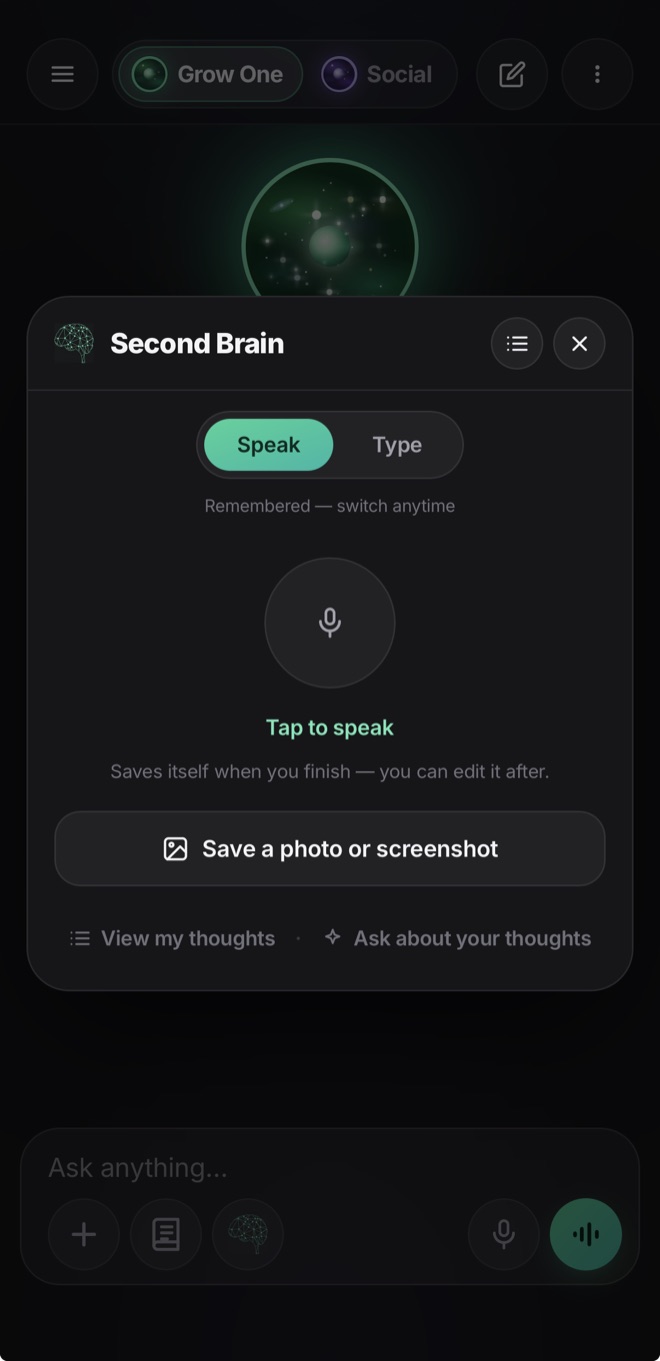
Half-formed ideas, things a client said, the name of that place. Save them in a second, then ask for them the way you would ask a person.
- Turn it on. Settings→Your assistant→Second Brain. A small brain button appears on the chat bar. If the switch is not there yet, it has not been enabled for your account; ask us.
- Capture. Tap the brain → speak it, type it, or use a photo or screenshot (it keeps what the image says, not the image). You can add a note first (“just the phone number”) to say what to keep. Each thought files itself by category (ideas, clients, finance, marketing, personal, travel…) and by the people it mentions.
- Ask. Tap "Ask about your thoughts". The chat shows a "Using your thoughts" chip and answers only from what you saved. The × on the chip returns to normal chat.
- Browse. "View my thoughts" lists everything with search, and a map of how your ideas connect.
What happens on its own
Some of Grow One runs without being asked. This chapter is not a how-to; it explains what arrives, when, and where to turn each piece down.
- The morning briefing. One message a day, 7:30 on weekdays unless you change it, with only the sections that have something in them: tasks due, today's calendar, mail waiting, meetings to prepare, WhatsApp customers waiting, money, and your apps when there is something to say, with the whole week on Mondays. Time and days live under Settings→Notifications & reminders→Daily briefing. Past briefings are in ☰→Briefings.
- Needs you. ☰→Needs you is the list of things waiting on you as cards: an email to answer, a follow-up that went quiet, meeting prep, a task at risk, an invite to answer, a customer on WhatsApp. Act on a card or dismiss it; dismissed ones can be restored from the Dismissed list. A card you keep closing stops returning to the chat but stays here, and waiting cards expire on their own after two weeks.
- Reminders. The same Settings screen lists each kind (unanswered emails, follow-ups, meeting prep, task deadlines and more) with its own switch, and "How proactive?" sets the pace: Balanced caps them at about 3 a day, Everything has no cap.
- Quiet hours. "Hold notifications at certain hours", a from and until time, and "Quiet all weekend" at the top of that screen. Or say it: "don't bother me from 9 pm to 7 am" sets the same thing.
- Scheduled. ☰→Scheduled is what it does for you on your schedule. Say it in your own words (“tell me if my supplier raises prices”, “a Monday roundup of local events”, “every Friday at 4, write a short update on my week for my team”) and confirm the card; tap Change on its When row to pick the day and time. It stays quiet until something changes, sends a roundup on a schedule, or does a job at its time and leaves it for you to look over. Jobs only get things ready: nothing is sent until you send it, and they never read your email, WhatsApp or Slack. Every item says when it runs next, and New for you shows what it found or made; the thumbs teach it what you care about. Ask for a reminder there too and it lands in Planner. Already running for you lists what it does on its own, like your daily briefing and meeting prep. If it finds that something you named was retired or replaced, the card shows “I switched to …”: one tap updates every topic that names it. Up to 5 at once. Only things that need action also appear in Needs you.
Needs you · today
Your teamBusiness
On the Business plan everyone gets their own Grow One inside your business. What faces your customers can be shared: the social agent, the website and the WhatsApp inbox. Each person's email, calendar, notes and chats stay theirs alone.
- Start on a computer. The team is run from Grow One on a computer, at app.growone.io. Sign up there and pick "My business": the 7-day free trial starts with a card on file, and nothing is charged that day. 3 places are included.
- Invite people. During setup, "Who works with you?" asks right away. Later, use Settings→Add team members. Type their email, choose what they can use, and tap Send invite. It goes from your connected email, or from Grow One with replies coming to you. If neither can send it, tap Copy invite and send it yourself. Their place is saved while the invite waits.
- They join. They sign in to Grow One with Apple, Google or an email code, using that same email. Grow One asks whether they want to join your business. They say yes and land in the team with their own assistant, then go through their own short setup.
- Four switches per person. Social media agent: the posts, the social accounts, the team's social chat and setting the agent up. Website builder & editor: edit and publish pages and answer the leads. Company WhatsApp: the business's WhatsApp inbox. Connect Slack: connect their own Slack for alerts and project answers. Change them any time in the Team panel. Managers always have all four on.
- Shared and private. Every assistant on the team knows your business profile and brand. Each person's email, calendar, meetings, notes, contacts and chats with their assistant are theirs alone: nobody on the team sees them, not even whoever manages it. WhatsApp chats marked Personal by the person who connected WhatsApp stay hidden from everyone else.
- Your social media person. Someone else runs your social media? Turn on Social media agent for them. From their own Grow One they set the agent up, connect the accounts and approve posts. "About your business" stays with the managers.
- Places and billing. In the Team panel, Change places adds or removes places: $39 a month each beyond the 3 included, prorated on your next invoice, up to 10 people online (write to us for more). Billing & invoices opens Stripe for receipts, your card or cancelling. If the plan ends, everyone on the team loses access unless they have their own App Store plan.
- Managers, leaving and removing. "Let them manage the team" makes someone a manager: managers add and remove people and change the business settings. A person who leaves or is removed takes their email, notes and chats to their own account and needs their own plan. Their work for the business, like pages and posts, stays with the team. Whoever created the business can't leave or be removed; they can delete their account from Settings once someone else manages the team, and the team keeps the business's work. Whoever connected the business WhatsApp disconnects it first.
- On the iPhone. Teammates use the iPhone app like anyone else. People, switches, places and billing change only on a computer; the phone shows the team without changing it.
Team · 3 of 3 places in use
ProjectsEvery plan
A project is its own space for one client, product or plan: its own chats, files, meeting notes, instructions and memory. Inside a project, Grow One uses only that project, plus the web. Never your email, calendar or main memory.
- Create one. ☰→Projects→Create. Give it a name and a color, or start from Client, Product or launch, Design or Plan. Instructions are optional: how Grow One should work here, like "keep emails short" or "our launch is Nov 14". Change them any time, or just say them in a chat.
- Chat inside it. Type, dictate with the mic, or tap the green button to talk. Every chat is saved in the project. When an answer comes from a file or a meeting, it says which one.
- Add what it should know. Open the Files & notes tab → Add something to add a file (PDF, Word, Excel, CSV or text, up to 20 MB), a photo (it reads the text in it), a Notion page, a meeting note or pasted text. Every chat in the project reads it, and each one gets a one-line summary. The + inside a chat attaches a file, photo or Notion page to that chat only. Say "remind me to…" in a project chat and the same task card as Grow One appears: Add puts it in your own Planner with the project's name, and teammates don't see it. The project's Tasks tab lists the ones still open. To add an email, open it in Inbox, then ⋯→Add to project. To move a chat in from Grow One, ⋯→Add to project on that chat.
- Record a meeting into it. The notebook button inside a project records straight into it. The note also stays in your Meeting notes unless you turn on "Keep only in this project".
- It remembers. The project learns facts from its chats: dates, prices, who decides what. Say "remember that…" to save one on purpose; Undo appears right away. Memory lists everything it learned, and anything can be removed.
- Where we are. The top of each project keeps a short summary of what is decided and what is still open, and it updates as the project moves.
- How much it reads. Every chat reads up to about 80 pages of text in full. A bigger project still works: chats read the newest items in full and open the rest when a question needs them, using each item's summary and a search of the project. Files and notes shows which items are opened when needed.
- Ask from Grow One. In your main Grow One chat, or by voice: "what's the latest with Casa Verde?". It looks into that project and answers, naming the project. It only reads; to work inside a project, open it. Turn this off per project with the "Grow One can see this project" switch.
- Project settings. The gear inside a project, or ⋯→Project settings on the list: name, color, instructions, files, memory, the people in it, pin, the Grow One switch, and delete or leave.
- Share it. On the Business plan, the share button adds anyone on your team, and the project shows up for them under Shared with me. Can chat: use the project and its chats. Can edit: also change instructions, files and memory. Admin: also add and remove people. Everyone in a shared project sees every chat. Only the owner can delete the project or make someone else the owner.
Projects · Casa Verde
Kickoff · meeting note
SlackCreator
Connect Slack once. Ask Grow One what you missed, get leads and payments in a channel, and give each project its own channel where you ask Grow One without opening the app.
- Connect. ⋯→Settings→Account connections→Slack→Connect. Slack opens and lists what Grow One is asking for. Pick the channel for your alerts and tap Allow. If your workspace needs an admin to approve apps, Slack sends them the request. One Slack account connects to one Grow One account, and the Slack screen shows which one ("Connected as …").
- Catch up. In the Grow One app, ask "what did I miss on Slack?". It reads what's new in your channels since you last asked: what mentions you first, then the rest by channel. Its own alerts are left out, since you already got them. Ask about one channel ("what's new in #marketing?") or a topic ("did anyone mention the invoice in Slack?"). In chat, "what should I focus on today?" also brings the Slack messages that mention you. It never reads your direct messages and keeps nothing. For one tap, add it under Settings→Your assistant→Chat shortcuts.
- Alerts. New leads, customer replies and Stripe payments post to that channel. Each has its own switch on the Slack screen, next to Send a test and Change channel. Contacts marked Personal are never posted.
- Give a project its channel. Open the project, tap the gear, then Slack channel and pick one, or pick it when you create the project. A channel made just for that project works best. Grow One joins a public channel by itself; in a private one, type /invite @Grow One.
- Ask in the channel. Start each message with @Grow One: "@Grow One what's the latest?". It answers right there from the project's notes, files and memory, and everyone in the channel sees it. Slack only passes along the messages that mention @Grow One.
- Save from Slack. "@Grow One remember that the launch moved to May" goes into the project's memory, and the reply says what was saved. Only people who can edit the project can save; someone who can only chat can ask, but nothing they say is saved.
- Chat with the Grow One app. In Slack, look under Apps (or search "Grow One") and write to it like a normal chat, no @ needed. Say the project's name the first time; after that it remembers which one you mean. Nobody else in Slack sees that chat; it is saved in the project, where its members can read it.
- Who can ask. People who connected their own Grow One account and belong to the project. The Projects switch on the Slack screen turns project answers off for you and keeps your alerts. On a Business team, the manager switches Slack on for each person. A project whose "Grow One can see this project" switch is off is not answered in the Grow One app chat.
Slack · #client-acme
Saved to project memory
StudioCreator
Flyers, promos and pictures for your business with your words and logo, and fixes for any photo. The words always come out exactly as you typed them.
- Open it. ☰→Studio. Or ask Grow One in chat for a flyer or a photo fix and tap Open Studio.
- Make a design. Pick what it is (Sale or offer, Event, Product, Tips…), type a headline or tap "Write it for me", add a photo of what you sell if you like, choose a look and a size, and tap Make design. It takes about a minute and uses 1 AI image. The picture is made to fit your business: your look, your Inspo photos and your brand colors.
- Change the words. Your headline, button, logo and QR code stay editable: Edit text and logo. Not the picture you wanted? Try another version, then flip between versions with the arrows, a swipe or the strip under the picture.
- Fix a photo. Upload a photo (or pick one from your Library) and choose a fix: Erase something, Change an area, Recolor, Remove background, New background, Expand, Sharper or Enhance. Paint over the spot when it asks; the brush size, Undo stroke and Clear sit right under the photo.
- What it uses. Quick fixes (Erase, Recolor, Remove background, Expand, enlarging a small photo) don't use your AI images: you get 100 a month. Change an area, Enhance and an AI-made background use 1 AI image. A color background and sharpening a big photo are free.
- Use it. My designs keeps everything. From any design: Download, Post on Social (Social opens with it attached and writes the caption), or put it on a website page from the page's photo picker. In Social's Library, Fix in Studio opens a photo here, and Save to Library puts the fixed one back in its place.
- App store screenshots. Apple & Android stores turns your app's screenshots into the exact sizes the App Store and Google Play ask for, with headlines, a background and the Google Play banner. Save your app once and pick it next time. Your screenshots never leave your device.
Studio · Make a design
Get your mornings back.
Download it, answer a few questions, and it starts working today.